How to Unlock an Android Phone with a Broken Screen
A broken Android screen doesn’t always mean you’ve lost access to your phone. The right solution depends on whether the display still works, whether touch input is available, and whether you need to preserve your data.
If manual methods aren’t suitable, Fonelora Android Unlocker offers a PC-based option for supported devices. Before starting, check your screen condition and understand whether the unlocking process may erase local data.
How to Unlock an Android Phone with a Broken Screen
Choose the method that matches your situation:
| Your Situation | Recommended Method | Data Loss Risk |
| Screen visible, touch not working | OTG cable and USB mouse | Low |
| Supported Samsung with Remote Unlock enabled | Samsung remote unlocking | Low |
| Previously authorized USB debugging | ADB, where supported | Varies |
| Manual methods unavailable | Fonelora Android Unlocker | Data may be erased |
Important: If photos or files are your priority, try data-preserving options first. Many third-party screen-lock removal tools erase local data, and compatibility varies by device model.
Method 1: Use Fonelora Android Unlocker
If you cannot operate the broken screen and manual unlocking isn’t available, Fonelora Android Unlocker is a practical software option to consider. It runs on a Windows or Mac computer and helps remove screen locks on supported Android devices.
It does not repair a damaged display or touch sensor. Check your device’s compatibility and data-loss warnings before proceeding.
Step-by-Step Guide
Step 1: Prepare your computer and phone
Use a Windows or Mac computer, a stable USB data cable, and your broken Android phone. Keep the phone charged if possible.
Step 2: Launch Fonelora Android Unlocker
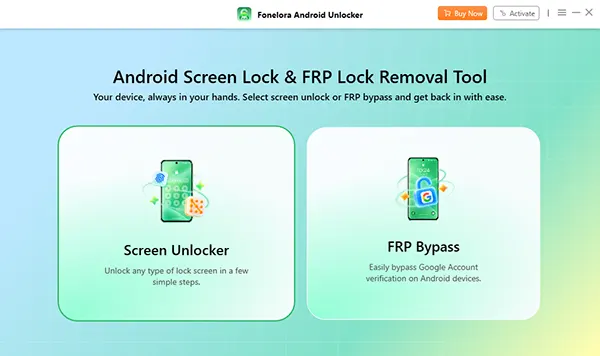
Open the software on your computer and select the Screen Unlocker module.
Step 3: Connect your Android phone
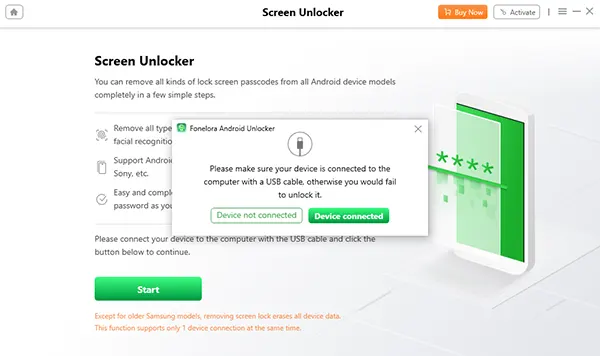
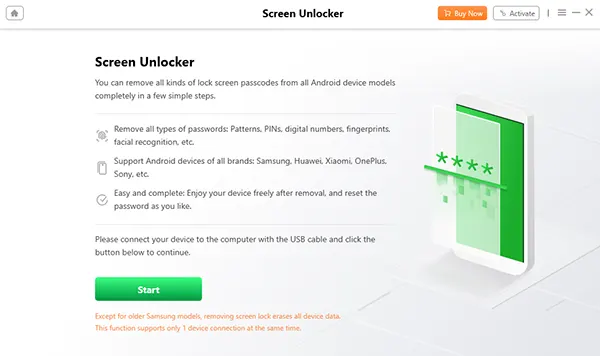
Connect the phone to the computer using the USB cable. Follow any connection instructions displayed by the software.
Step 4: Select your device model
Choose your phone’s brand and model from the available list. Confirm that your device is supported before continuing.
Step 5: Review the data-loss warning
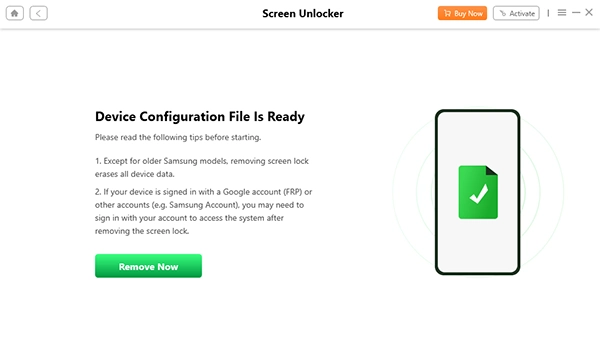
Read the instructions and check whether the supported unlocking procedure will erase your local data. Many Android models require a reset during screen-lock removal. Do not proceed if preserving unbacked-up files is essential.
Step 6: Follow the on-screen instructions
Allow the software to obtain any required recovery package, then follow its guided instructions to complete the supported unlocking process. Do not disconnect the phone during the procedure.
Step 7: Check access after unlocking
Once the process finishes, follow the software’s instructions to restart or access the phone. If the display is physically damaged, you may still need a screen repair to use the device normally.
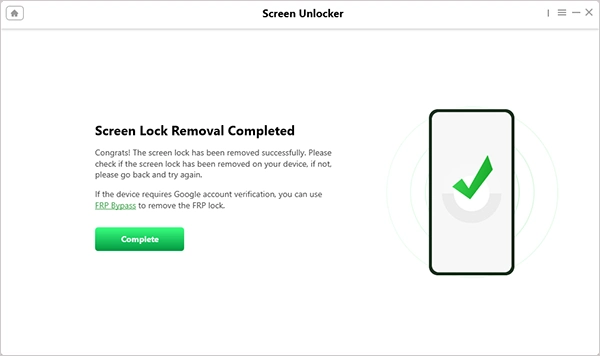
Ready to check your device? Open Fonelora Android Unlocker, select Screen Unlocker, and verify your phone’s compatibility before proceeding.
Method 2: Use an OTG Cable and USB Mouse
This is a good first choice when the display is visible but the touchscreen no longer responds.
- Connect a compatible OTG adapter to your phone.
- Plug a USB mouse into the adapter.
- Wake the screen using the power button.
- Use the mouse to swipe, enter your PIN, or draw your pattern.
- Back up your important files once you regain access.
This method generally preserves data because it does not remove the screen lock. It will not help much if the display is completely black and you cannot see where you’re clicking.
Method 3: Try Samsung Remote Unlocking
Some Samsung devices may support remote unlocking through Samsung’s available device services. However, availability and features can change, so verify current support through official Samsung resources.
The device must meet the applicable requirements, which may include being powered on, connected to the internet, and having the relevant remote feature enabled beforehand.
- Open Samsung’s official device-finding service on another device.
- Sign in with the Samsung account associated with your phone.
- Select your device and check which remote actions are available.
- Follow the official instructions if a supported unlock option is offered.
Do not assume that every Samsung phone can be unlocked remotely. If the option is unavailable, consider other supported methods.
Method 4: Use ADB If It Was Previously Configured
Android Debug Bridge (ADB) may help with certain authorized device-management tasks, but it is not a reliable universal method for removing a modern Android screen lock.
USB debugging must have been enabled beforehand, and the computer generally needs to have been authorized. Modern Android security protections can prevent older lock-file removal techniques from working.
If your phone contains important data, avoid experimenting with commands that modify system files. Consider professional repair or data-recovery assistance instead.
Unlocking Software vs. Screen Repair
Unlocking a phone and repairing its screen are different tasks.
Screen-lock software may help remove a digital access barrier on a supported device, but it cannot fix a broken LCD panel or damaged digitizer. If the screen remains black after unlocking, physical repair may still be necessary.
Can I unlock an Android phone with a completely black screen?
Possibly. The available options depend on the device, prior settings, and whether a supported unlocking method is available. Fonelora Android Unlocker may be an option for compatible models, but data loss is possible.
Will Fonelora Android Unlocker erase my data?
It depends on the device and supported procedure. Many Android screen-lock removal processes erase local data. Confirm the warning for your exact model before proceeding.
Can I unlock my phone without losing photos?
Try an OTG mouse if the display works, or a supported official remote option if available. If neither works, seek professional assistance before using a method that may reset the device.
Can unlocking software fix a broken screen?
No. Unlocking software addresses the digital lock, not damaged display hardware.
Final Recommendation
Start with the least destructive method available. Use an OTG mouse if you can see the screen, check official Samsung options if applicable, and consider Fonelora Android Unlocker if your device is supported and you accept the data-loss risk.
Before proceeding, confirm compatibility and data impact. If your phone contains irreplaceable files, prioritize data preservation over removing the lock quickly.
Clarify the lock-screen scopeFix the method orderStrengthen the software CTA