Some Websites Won’t Load on Windows? Diagnose the Cause First
Your internet connection seems fine: YouTube loads normally, and messaging apps work without issues. Yet one particular website refuses to open on your Windows PC. Strangely, the same page might work perfectly on your phone.
This doesn’t necessarily mean the website is down or your internet is broken. DNS errors, browser extensions, proxy settings, and network routing can all affect whether a page loads.
Instead of resetting everything, use the following checks to identify the actual cause and fix it without making unnecessary changes.
1. Find Out Whether the Problem Is the Website, Browser, or Network
Before changing Windows settings, narrow down where the problem occurs.
Start with three simple tests:
- Try another website. If multiple unrelated sites fail, the problem may involve your internet connection or DNS configuration.
- Open the affected page in another browser. If it works there, investigate the original browser’s extensions, cache, and settings.
- Test another device. Try the same website on your phone, first using the same Wi-Fi network and then using mobile data.
The third test is particularly useful. If the website fails on Wi-Fi but opens over mobile data, the difference may involve the network’s DNS resolver, routing, filtering, or connectivity.
If the website fails across devices and networks, check for official outage announcements before troubleshooting your PC.
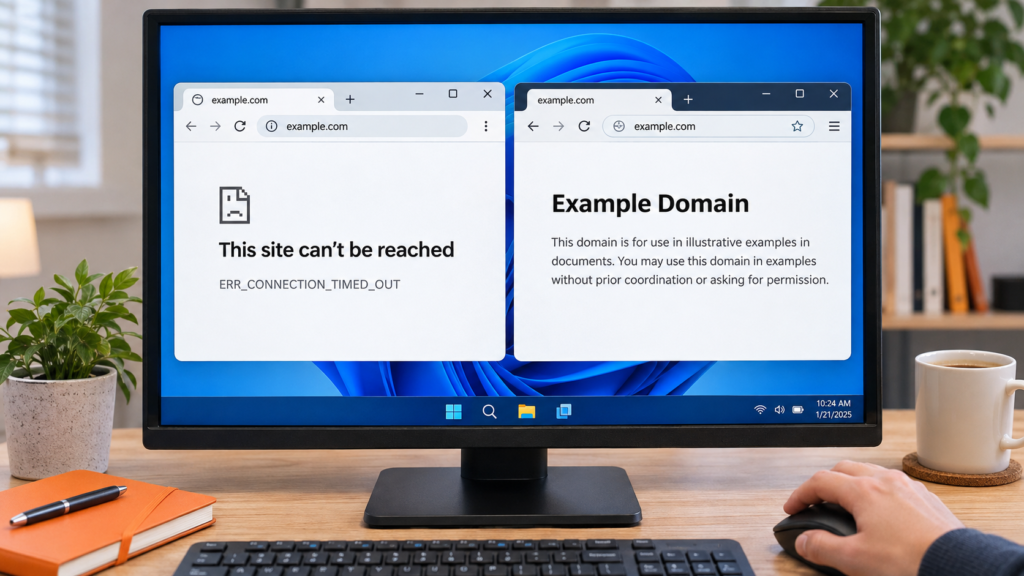
Record the browser error message, such as ERR_NAME_NOT_RESOLVED or ERR_CONNECTION_TIMED_OUT. These messages can provide clues about which component is failing.
2. Check Whether a VPN or Different Network Route Changes the Result
Sometimes a website works through one internet connection but fails through another. This can happen because different networks use different DNS resolvers, routing paths, and filtering policies.
If you’re already using a VPN, disconnect it temporarily when permitted and try the website again. A VPN server or its configuration could be contributing to the problem.
If you’re not using one, testing a VPN service can help you see whether an alternative connection path changes the result.
A VPN routes traffic through a remote server and typically uses the provider’s network configuration. If the website becomes accessible, this suggests that something about the connection path or associated settings may be involved.
However, the result does not prove that routing alone caused the issue. The VPN may also change DNS behavior or other connection parameters.
For a useful comparison, follow these steps:
- Test the affected website using your normal connection.
- Connect to a VPN server and repeat the test.
- Compare whether the page loads and whether response times change.
- Disconnect the VPN and check the original connection again.
Windows users who want to perform this test can obtain a VPN app for Windows from the provider’s official download page.
Remember that a VPN may also increase latency, trigger website security checks, or interfere with local network services. It is a diagnostic option, not a guaranteed fix.
On managed school or workplace networks, follow the organization’s access policies before changing VPN settings.
3. Check Whether DNS Is Resolving the Website Correctly
DNS translates domain names into IP addresses. When resolution fails, a browser may be unable to find a website even though the internet connection itself is working.
Windows includes a built-in tool for checking DNS responses.
Open Command Prompt and enter:
nslookup example.com
Replace example.com with the affected domain.
If the command returns the expected DNS records, the DNS server used by nslookup is responding to that query. However, your browser may use different DNS settings, and successful resolution does not guarantee that the website is reachable.
If the lookup fails, compare the result with another known domain. This helps distinguish a domain-specific issue from a broader DNS problem.
You can also clear the Windows DNS resolver cache:
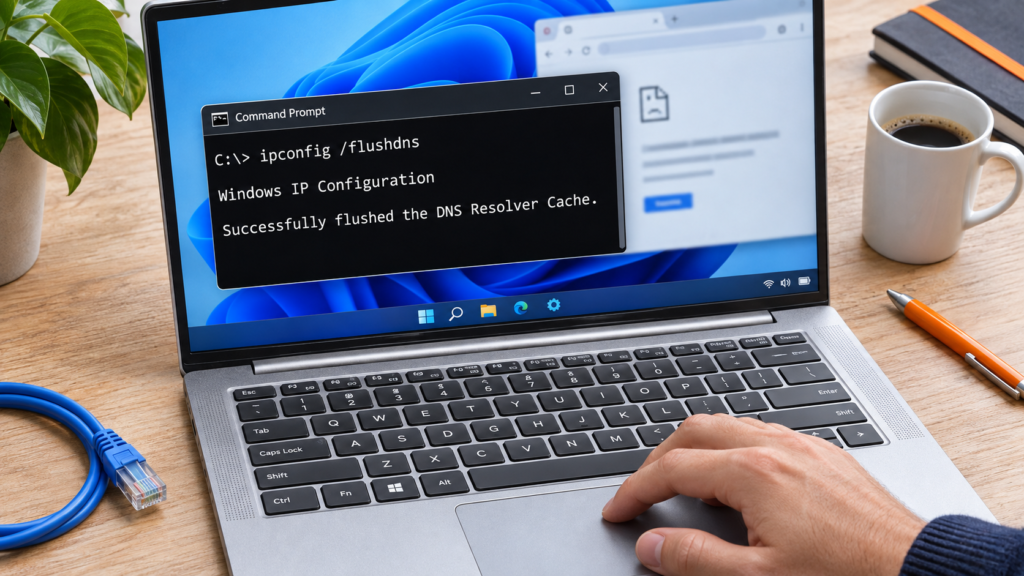
ipconfig /flushdns
This clears the Windows DNS resolver cache, which may help if an outdated or incorrect entry was stored locally. It does not clear every browser’s DNS cache or change records held by DNS servers.
After running the command, reopen your browser and test the website.
Do not immediately switch to an unfamiliar DNS provider. If you decide to change DNS servers, choose a trusted resolver and record your original settings so you can restore them if needed.
4. Rule Out Browser Extensions and Cached Data
If a website works in Microsoft Edge but fails in Chrome or Firefox, the problem is more likely browser-specific.
Extensions that block advertisements, scripts, or trackers can sometimes interfere with website functions.
Try opening the page in a private browsing window. Depending on your browser’s settings, this may provide a useful test with fewer active extensions.
If the website works in a private window, review your extensions and site data. The difference may involve disabled extensions, cookies, or an existing browser session, so test these factors separately before drawing a conclusion.
Next, clear cached files for the affected website. There’s usually no need to delete your entire browsing history or saved passwords.
Be careful when deleting cookies because doing so can sign you out of websites.
Finally, update the browser and restart it. If an extension consistently causes problems, check whether it has an update or an alternative configuration.
5. Review Proxy and Firewall Settings
Windows supports proxy connections that route certain network requests through another server.
These settings can be useful in organizations, but an outdated or incorrectly configured proxy can prevent websites from loading.
To review them on Windows 11:
- Open Settings > Network & internet.
- Select Proxy.
- Review automatic detection, setup scripts, and manual proxy configuration.
- Check for settings that you do not recognize.
On a personal PC, an unexpected manual proxy configuration may be worth investigating. Do not disable a proxy required by your employer, school, or network administrator.
Security software may also block certain websites. If a page is restricted, check the warning message and the protection software’s logs.
Avoid disabling your firewall or antivirus simply to force a website to open. A security warning may indicate a genuine problem.
6. Test Your Local Connection Before Blaming the Website
If several websites fail, start by checking the connection between your PC and router.
Open Command Prompt and enter:
ipconfig
Find the Default Gateway address for your active Wi-Fi or Ethernet connection.
Then test that address with the ping command. For example:
ping -n 10 192.168.1.1
Replace the sample address with your actual gateway.
If the router responds consistently, your local connection is probably functioning at that moment. However, this doesn’t prove that your internet connection is fully operational.
If responses are inconsistent, try connecting through Ethernet or moving closer to the Wi-Fi router.
Keep in mind that some routers restrict ping responses, so a timeout alone does not establish a network failure.
You can also use Windows’ built-in Network and Internet troubleshooter through the Get Help app to investigate broader connectivity problems.
7. Match the Error Message to the Next Troubleshooting Step
Different browser messages point toward different possible causes. Use the following table as a quick diagnostic reference.
| Symptom or Error | Possible Cause | What to Check |
| ERR_NAME_NOT_RESOLVED | DNS resolution failure | Run nslookup and inspect DNS settings |
| ERR_CONNECTION_TIMED_OUT | Server, firewall, or network path issue | Compare browsers and networks |
| Connection works on mobile data only | Wi-Fi, DNS, or routing difference | Compare results on both networks |
| Website works in another browser | Extensions or browser configuration | Test extensions and cached data |
| Certificate or privacy warning | Invalid certificate, incorrect clock, or interception | Verify the URL, system clock, and certificate warning |
| Several websites fail on every device | Router, ISP, or broader service issue | Check router status and provider notices |
These symptoms are indicators rather than definitive diagnoses.
For example, a timeout does not automatically prove that your ISP is blocking the website. The destination server may simply be unavailable.
Similarly, never bypass an HTTPS certificate warning without understanding why it appears.
8. Use Network Reset Only as a Last Resort
Windows includes a Network Reset feature, but it should not be the first troubleshooting step.
On Windows 11, you can find it under:
Settings > Network & internet > Advanced network settings > Network reset
This procedure removes and reinstalls network adapters and restores several networking settings to their defaults.
It may also require you to configure VPN software, virtual switches, and certain network settings again.
Before proceeding, save any configuration details you need and check whether a simpler solution resolves the issue.
For work or school computers, consult your IT administrator before using Network Reset.
If the problem persists after appropriate checks, document the affected websites, error messages, and tests you’ve performed. This information can help an administrator or internet provider investigate more efficiently.
Conclusion
When a website won’t load on Windows, a complete network reset is rarely the best place to start.
Start by comparing browsers, devices, and internet connections. Then investigate DNS resolution, VPN or proxy settings, browser extensions, and local connectivity.
The key is to change one variable at a time and observe the result.
With a structured troubleshooting approach, you can identify many website loading problems more accurately while avoiding unnecessary software installations and risky system changes.

- 1. Find Out Whether the Problem Is the Website, Browser, or Network
- 2. Check Whether a VPN or Different Network Route Changes the Result
- 3. Check Whether DNS Is Resolving the Website Correctly
- 4. Rule Out Browser Extensions and Cached Data
- 5. Review Proxy and Firewall Settings
- 6. Test Your Local Connection Before Blaming the Website
- 7. Match the Error Message to the Next Troubleshooting Step
- 8. Use Network Reset Only as a Last Resort
- Conclusion