How to Create Better Images for Tech Tutorials With an AI Image Generator
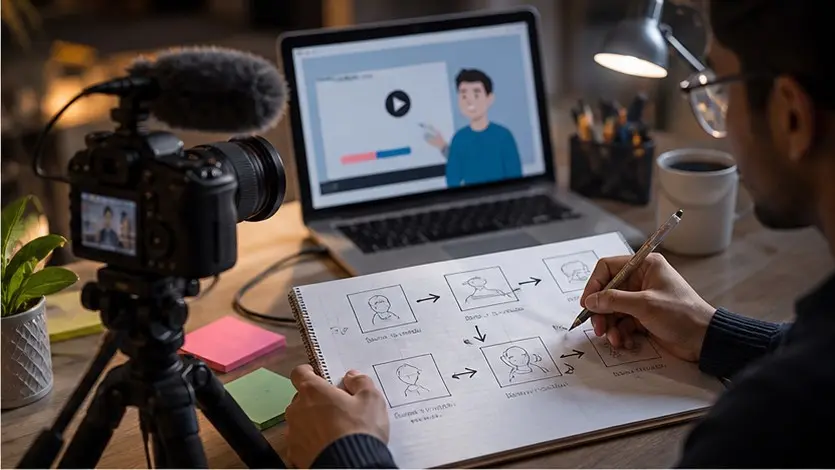
A useful tech tutorial does more than explain what to click. Readers also need to understand unfamiliar concepts, recognize the right device or setting, and see how each step fits into the larger process. Clear visuals can make those explanations easier to follow, especially when a topic involves network connections, computer hardware or software workflows. An AI image generator can help tutorial writers create supporting illustrations, concept images and consistent visual assets when suitable screenshots or photographs are not available.
The important distinction is that generated images should clarify a tutorial, not pretend to document an interface or prove that a procedure works. A real screenshot is still the best evidence for an exact menu, button or software setting. AI-generated visuals are more useful for explaining abstract ideas, illustrating devices and creating editorial images that make a technical article easier to navigate. This guide explains how to plan, generate and use those visuals responsibly.
1. Decide What the Reader Needs to See
Before opening an image tool, review the tutorial and identify the points where a visual would genuinely help. A long article does not need an image after every paragraph. Instead, look for moments when readers may struggle to picture a device, understand a relationship between components or distinguish one stage of a process from another.
For a guide to improving home Wi-Fi, for example, readers may benefit from a simple illustration of a router sending a signal through a home, a comparison of router placement options or a hero image showing a person troubleshooting a connection. The exact router settings, however, should be shown with verified screenshots from the relevant device or app.
Make a short visual plan before generating anything. For each proposed image, write down its purpose, the information it needs to communicate and where it will appear. A hero image may establish the topic, while a supporting illustration can explain one specific idea. If two visuals serve the same purpose, keep the stronger one and use the space for information instead.
Match the image to the reader’s knowledge. Beginners may need a simple illustration of how a modem, router and connected device relate; experienced readers may benefit from a hardware close-up or comparison of network setups.
2. Choose the Right Visual Format for the Tutorial
Different technical subjects call for different types of images. A realistic editorial illustration can make a general article feel approachable, while a clean conceptual diagram can help explain how components interact. A close-up product-style image may be useful when discussing a physical connector, cable or peripheral, provided it is not presented as an exact model unless its details have been checked.
Use real screenshots for instructions that depend on an actual interface. Menus, icons, labels and settings can change between operating system versions, software releases and device manufacturers. A generated image may invent a button, alter a label or place a control in the wrong location. That can confuse readers and undermine trust, even if the image looks polished.
For abstract explanations, an illustration can be more effective than a screenshot. A tutorial about cloud storage might use a visual metaphor showing files syncing between a laptop, phone and remote server. An article about computer memory could use a simplified visual comparison of temporary working space and long-term storage. Keep metaphors clearly illustrative so readers do not mistake them for literal hardware diagrams.
For troubleshooting guides, consider a sequence of visuals rather than one crowded image. A simple overview can introduce the problem, a real screenshot can show the relevant setting, and a final illustration can explain the expected connection or result. This gives readers visual support at the moment they need it without forcing every detail into one graphic.
3. Write Prompts That Produce Useful Technical Images
A strong prompt describes the subject, the context, the composition and the visual style. Broad instructions such as “make a technology image” leave too many decisions to the generator. A more useful prompt explains what the image is for and what the viewer should notice first.
For the home Wi-Fi example, a prompt could read: “Create a clean editorial illustration for a beginner-friendly article about improving home Wi-Fi coverage. Show a modern wireless router placed in a central position in a modest home, with subtle signal waves reaching a laptop and smartphone in nearby rooms. Use a clear, uncluttered composition, realistic proportions, soft neutral colors and no visible brand logos or readable interface text. Landscape format with open space for a headline.”
Be precise about details that matter. If the image needs to show a laptop, specify whether it should be open, viewed from the front or shown at an angle. If the subject is a cable or connector, describe its shape and purpose, but verify the generated result against a real reference before using it to teach identification. Avoid asking for tiny labels or complex text inside the image; these are often better added later in an editor.
Include negative instructions when common mistakes would be misleading. For example, ask for no extra cables, no fictional logos, no floating devices and no readable text. These directions do not guarantee a perfect result, but they can reduce visual clutter and help keep the concept focused.
Generate a few variations and compare them against the original purpose. The most visually dramatic option is not automatically the most useful. Choose the image that communicates the idea quickly, leaves room for page text and does not introduce details that contradict the tutorial.
4. Use an AI Image Generator to Create Supporting Illustrations
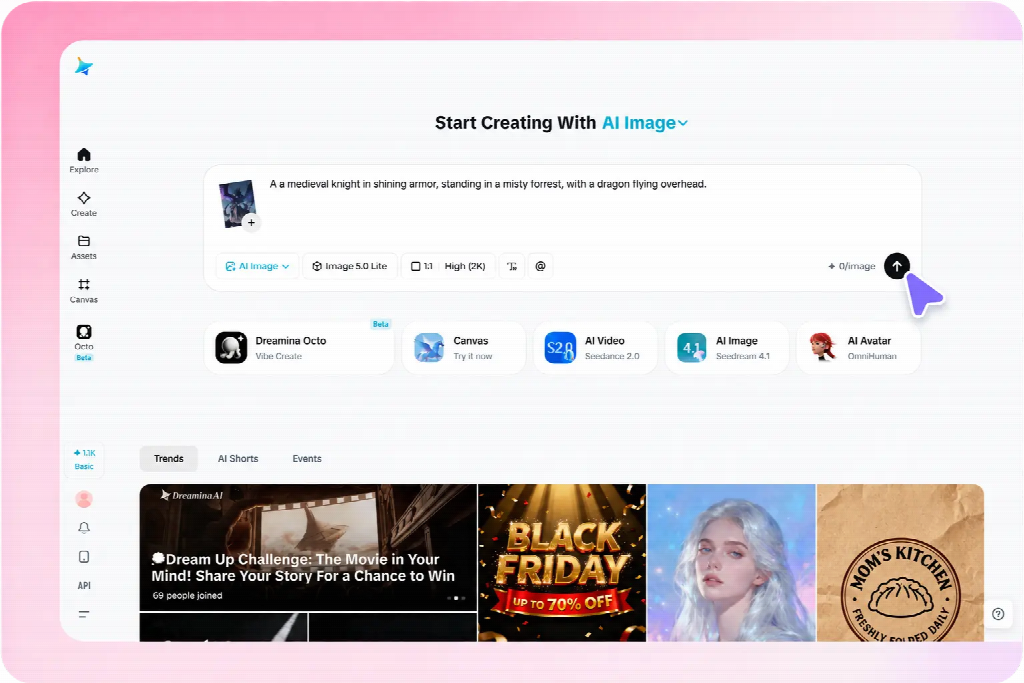
Once the visual plan and prompts are ready, use Dreamina to explore images for the article. Text-to-image generation can provide a starting point for editorial illustrations, device scenes and conceptual visuals. Describe the tutorial’s audience and the point the image needs to explain, then refine the prompt based on what the first results get right or wrong.
For a tutorial about connecting a laptop to an external monitor, you might create a general illustration of a desk setup with a laptop, monitor and connecting cable. The image can help readers understand the overall arrangement, while the written steps and verified screenshots explain which port to use and where to find the display settings. This separation keeps the illustration helpful without implying that every laptop has the same ports or menu options.
Reference images can help communicate a subject or visual direction. If you use a device photograph as a reference, inspect the result carefully: port placement, keyboard layout, cable ends and logos may change. Never treat an altered image as a precise product representation.
Image editing can also be useful when a generated concept is close but needs a focused adjustment. You might simplify a busy background, change the surrounding color palette or create more empty space for a heading. Make one change at a time and compare the edited version with the original so that the main subject remains clear.
Generate the main illustration first, choose the strongest composition and then make small refinements. Change one aspect at a time so you can tell which instruction helped. Save a clean version without text overlays for reuse in different page layouts.
5. Keep Images Consistent Across a Series of Tutorials
A technology website benefits from a consistent visual system across related guides. It makes a tutorial series easier to recognize and gives the publication a more cohesive appearance.
Choose a few repeatable decisions: image ratio, lighting, background treatment, color palette and level of realism. For example, a series about everyday computer help might use uncluttered desk scenes, soft natural lighting and a restrained palette. A networking series could use the same palette for router illustrations and conceptual diagrams, even when the subjects differ.
Keep a prompt template recording these choices. Change the subject for each article while retaining the shared visual direction. If reference images are supported, an approved image can guide later assets, but review every result individually.
Consistency should not come at the expense of clarity. Readers must still be able to distinguish a router from a modem or a USB-C connector from an HDMI port. For exact physical details, use a verified product photograph or diagram rather than a stylistic approximation.
6. Make Technical Images Clear, Accessible and Easy to Read
An image should remain understandable at the size where readers will actually see it. A detailed illustration may look impressive at full resolution but become unreadable when displayed in a narrow article column or on a phone. Preview images at desktop and mobile widths, and remove details that disappear or compete with the main subject.
Do not rely on color alone to explain a technical distinction. If an illustration uses different colors for a router, modem and connected devices, label those elements in the surrounding article or add clear annotations in an image editor. Use sufficient contrast between the subject and background, and keep any added labels short and legible.
Write alt text that explains the image’s purpose. “Illustration of a centrally placed Wi-Fi router connecting a laptop and smartphone” is more useful than “technology image.” If an image is purely decorative, use the appropriate empty alt text in the publishing system.
Keep important instructions in the article text rather than embedding them only in an image. Text within an image may be difficult to read on small screens, cannot be selected or translated easily, and may not be accessible to screen readers. The visual should reinforce the written explanation, not become the only place where essential information appears.
7. Avoid Common Mistakes When Using AI Images in Tech Content
The biggest risk is presenting an illustrative image as factual evidence. Generated interfaces can contain invented controls, inaccurate error messages or settings that do not exist. Generated hardware may have impossible ports or connections. These errors matter in technical tutorials because readers may follow the image literally.
Use current screenshots for software instructions and manufacturer documentation for exact hardware details. If an image depicts a particular product, verify its appearance against the actual model and avoid adding logos or features that are not present. If the visual is conceptual, label it or describe it as an illustration so readers understand its purpose.
Be careful with diagrams that show processes or data flow. A visually attractive sequence can still imply the wrong direction of information, an incorrect connection or a security guarantee that the article has not established. Check every arrow, label and relationship against the written explanation. When a process is complex, a manually constructed diagram may be more reliable than a generated image.
Finally, review licensing, privacy and publication requirements. Do not upload confidential screenshots, personal account details or sensitive information as image references. Check the usage terms for any assets and follow the website’s editorial standards for AI-generated visuals. A human review before publication can prevent avoidable mistakes.
A Pre-Publication Checklist for Tutorial Images
Before adding an image to a technical article, ask:
- Purpose: Does the visual explain a concept, identify a device or help the reader understand a step?
- Accuracy: Are exact interface details and product features shown with verified screenshots or references?
- Clarity: Is the main subject easy to recognize at desktop and mobile sizes?
- Consistency: Does the image fit the visual style of the rest of the tutorial series?
- Accessibility: Is useful alt text provided, and is essential information also available as normal text?
- Transparency: Is an illustrative or AI-generated image clearly distinguished from documentary evidence where needed?
The best tutorial images make a technical idea easier to understand when readers need help. Plan each visual around a specific question, use generated imagery for concepts and editorial support, and rely on verified screenshots or diagrams for exact instructions. With that balance, an AI image generator can help technology writers create clearer, more consistent tutorials without sacrificing the accuracy readers depend on.

- 1. Decide What the Reader Needs to See
- 2. Choose the Right Visual Format for the Tutorial
- 3. Write Prompts That Produce Useful Technical Images
- 4. Use an AI Image Generator to Create Supporting Illustrations
- 5. Keep Images Consistent Across a Series of Tutorials
- 6. Make Technical Images Clear, Accessible and Easy to Read
- 7. Avoid Common Mistakes When Using AI Images in Tech Content
- A Pre-Publication Checklist for Tutorial Images